A stream is hours of you live. Somewhere in there are the minutes people would actually share. The clutch play. The rage quit. The chat moment that broke everyone. Paste the VOD and IMABIRD goes through it for you. It finds the moments, fits your facecam and the gameplay into one vertical frame and adds captions. You get clips ready for TikTok, Shorts and Reels.
VOD in. Vertical clips out.
Facecam + gameplay
01
Grab the VOD
Copy the link to a past broadcast on Twitch and paste it in. Or connect your Twitch account and pick from your latest VODs. The stream has to be over, because IMABIRD clips recorded broadcasts, not live ones.
02
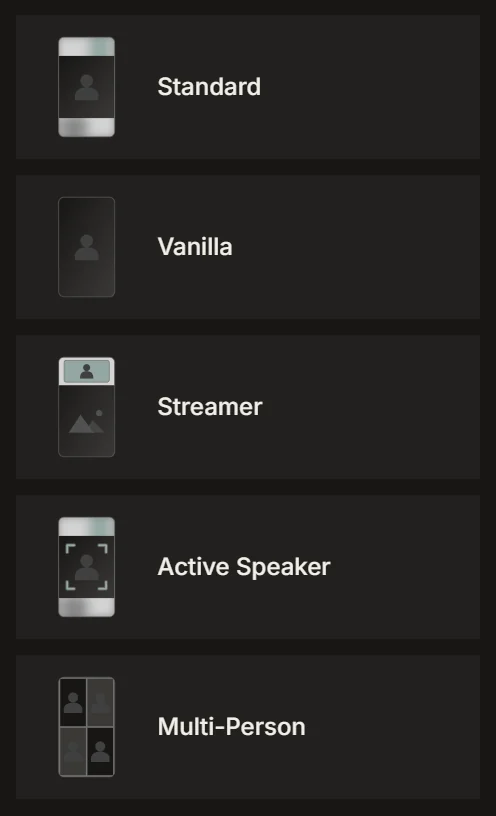
Pick a Streamer layout
Streamer - Top puts your camera above the gameplay. Streamer - Bottom puts it below. IMABIRD finds the facecam in the frame on its own, so there is no box to draw and no template to line up.
03
Let it pick the moments
The whole broadcast gets watched, not only the loud parts. You get up to ten clips per run at the length you chose: 10 to 30 seconds, 30 to 60, or 60 to 90. Each one comes back captioned and scored.
04
Fix, export, post
Open a clip in the timeline to tighten the build-up or let the reaction run a beat longer. Then export in 9:16 with no watermark and post it wherever your audience scrolls.
Two things in the frame. Both make it.
Gameplay is wide. Your face sits in a corner. A vertical crop of the middle loses both: the face falls off the edge and the game shrinks to a sliver. The Streamer layouts split the vertical frame instead. Your camera gets its own band and the action gets the rest. Viewers see the play and the reaction at the same time. The reaction is half the clip.
What streamers usually set
Streamer - Top or Streamer - Bottom, depending on where your face should sit
Clip length: short for a single play, longer for a whole story
A caption look that matches the channel
9:16 for TikTok, Shorts and Reels
What makes a stream clip travel
The reaction is the content. A great play on its own is a gameplay clip. A great play with your face losing it is a moment. That is why the facecam deserves real space in the frame, not a thumbnail in the corner. People share the reaction as much as the play.
Cut the dead air hard. Streams breathe. You wait in a queue, read chat, grab a drink. A clip cannot. Start a beat before the moment turns and get out right after the payoff. If it needs context, a caption or a line of text on top does it faster than thirty seconds of lead-in.
Chat moments need the chat. If the clip is funny because of what chat said, the viewer has to see it or hear it. Read the message out loud on stream, or keep it on screen in the crop. Otherwise the joke lands for you and nobody else.
Post while it is fresh. A stream clip is most interesting while people still remember the stream. Clipping the same night beats a perfect batch next week. That speed is the whole point of letting the first pass run on its own while you log off.
Questions.
Can I paste a Twitch clip link?
Not yet. IMABIRD takes Twitch VOD links, the ones for a full past broadcast. Paste the VOD and it finds the moments for you.
Can I clip a stream that is still live?
No. Wait until the broadcast ends and the VOD is up, then paste its link.
Does it work on other people's streams?
It works on any public Twitch VOD link. Make sure you have the streamer's permission, or that you are clipping for a campaign that allows it.
Do I have to mark where my facecam is?
No. The Streamer layouts find the camera overlay and give it its own band in the vertical frame. You can still adjust the framing on any clip in the camera view.
Are the clips ready for TikTok?
Yes. They export in 9:16 with the captions burned in and no watermark, which is what TikTok, YouTube Shorts and Instagram Reels expect.