Upload the video you posted on YouTube and IMABIRD turns it into a batch of captioned 9:16 Shorts, and every clip stays editable on the timeline.
The useful parts of a long video are usually already there. The work is finding the moments that can stand on their own, cutting away the setup they no longer need, reframing them for vertical and getting the captions right. Upload the video and IMABIRD runs that first pass for you. You get a batch of editable Shorts rather than a folder of finished decisions.
From upload to a batch of Shorts.
9:16
01
Upload the video
Use the original file you published, or download your video from YouTube Studio first. Drop it on the page or choose it, and the Cuts wizard takes it from there.
02
Let it find the moments
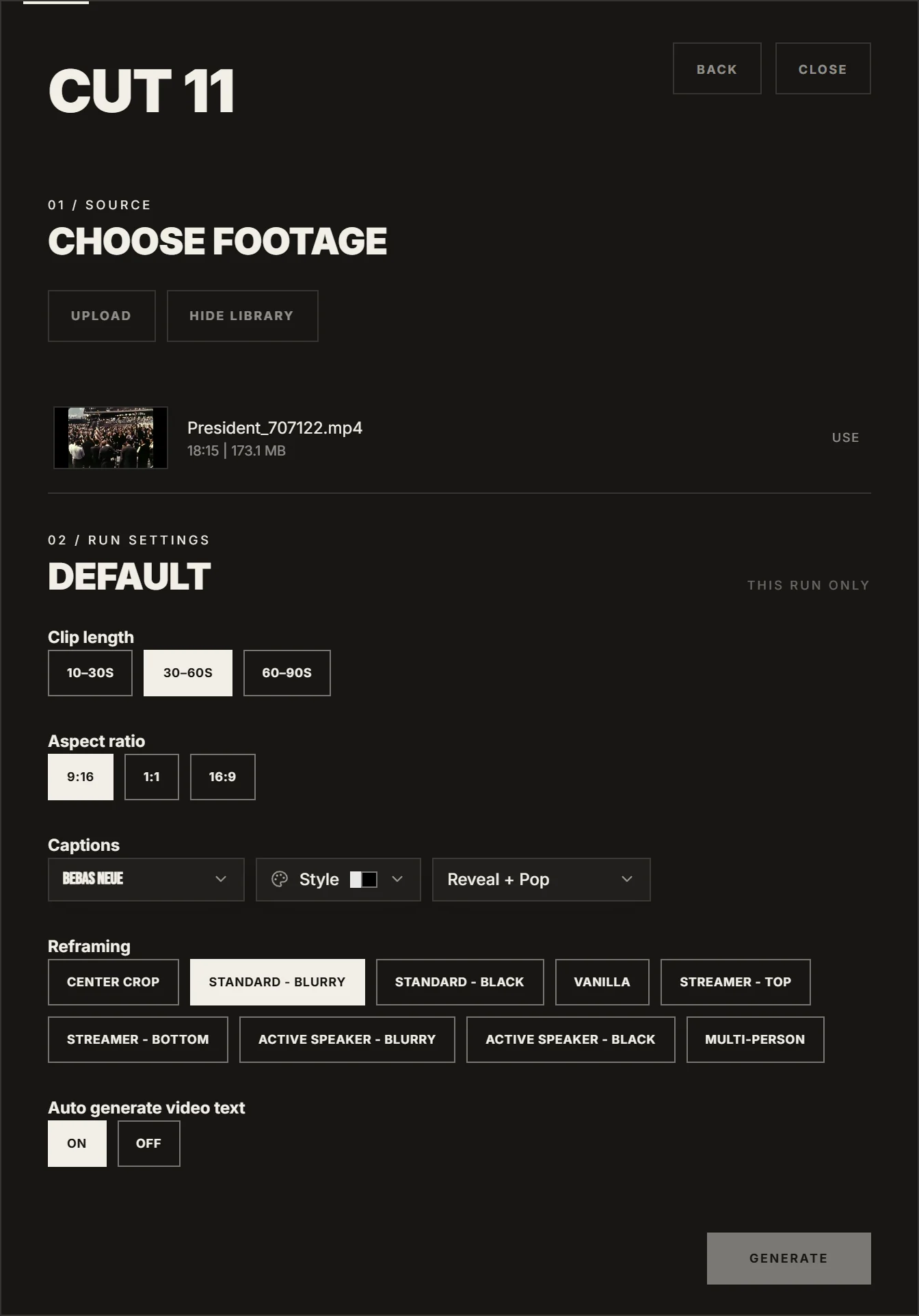
IMABIRD works through the full video and looks for sections that still make sense when they are removed from the original. Each selected moment becomes its own clip at the length you choose: 10 to 30 seconds, 30 to 60, or 60 to 90.
03
Check the crop and captions
Each clip comes back in the target aspect ratio with captions applied. Open the camera view when you want to see exactly what the vertical crop kept from the source, then move the framing on any shot where the important part ended up outside it.
04
Finish and publish
Open any clip in the timeline to tighten it, extend it, remove a section or change the captions. When it is ready, export at the resolution you need or send the finished clips to the publishing calendar and spread them across YouTube.
A horizontal video does not become vertical by itself.
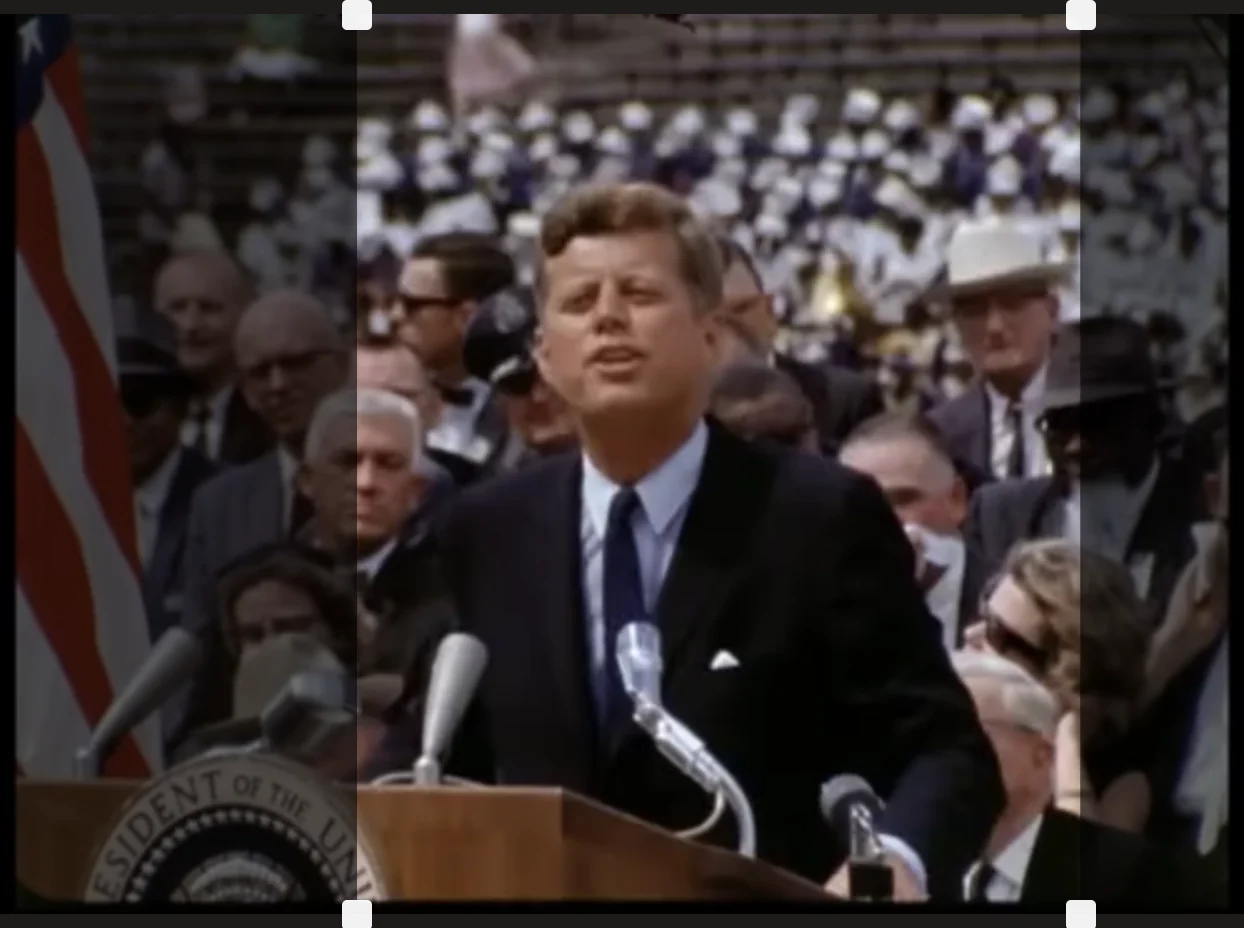
Turning 16:9 footage into 9:16 means discarding most of the width. A centre crop can work for a locked-off talking head, but it falls apart as soon as the subject moves, a second person enters the frame or something important sits near the edge. The camera view puts the full source beside the vertical result, so you can see what was lost and only fix the shots that actually need attention.
What the preset decides
Clip length: 10 to 30 seconds, 30 to 60, or 60 to 90
Aspect ratio, with 9:16 as the default for Shorts, Reels and TikTok
Reframing mode, including multi-face handling for wider conversations
Caption preset, applied consistently across the generated batch
Why a Short needs its own edit
A strong moment in a long video is not automatically a strong Short. In the original, a line may depend on a minute of setup, a question asked earlier or context the audience already has. Once you pull that moment out, all of that disappears. The best clips are the ones that still carry their own premise, development and payoff when a stranger sees them cold.
That is why the first pass should look for complete moments rather than simply the loudest sentence or the highest-energy section. Sometimes the better clip starts five seconds earlier than the quote you originally noticed because those five seconds are what make the rest understandable.
Captions matter for the same reason. On short-form video they are part of the pacing of the edit. The way a line breaks, when the next words appear and how much text sits on screen at once all change how quickly the clip feels. A good automatic pass gets you most of the way there; names, brands and unusual terms are the parts worth reading through before export.
Treat the generated batch as a shortlist, not an obligation. A forty-minute upload may contain twelve plausible clips without containing twelve clips worth publishing. Keeping the strongest four is often better than filling the calendar with eight more that merely work.
Questions.
Can I use a video that is already on YouTube?
Yes. Download your own video from YouTube Studio, or use the original file you uploaded there, and upload it to IMABIRD.
Can I change which moments were picked?
Yes. The generated clips are starting points, not locked exports. Open any clip in the timeline to trim it, extend it, remove a section, rearrange it or discard it entirely.
What aspect ratio do the clips use?
9:16 is the default for short-form platforms, but aspect ratio is part of the cut preset. Change the preset and future batches follow the ratio you choose.
Can I publish straight to YouTube?
Yes. Connect YouTube from your profile, then schedule finished clips with a date, time and post caption from the publishing calendar.
What does it cost to try?
Signing up gives you 50 credits a month and does not require a card. Captions and reframing are included on the free tier.